


Want to avoid losing important photos, documents or other files? Make sure to regularly back up your MacBook or iMac. With Time Machine, Apple's built-in backup feature, you can do this easily and automatically. We'll explain how it works, step by step.
Table of contents
- Why is backing up your Mac important?
- How to back up your Mac with Time Machine
- Can you also back up your Mac with iCloud?
- How to restore files with Time Machine
- How often should you back up your Mac?
- Safely switching to another MacBook
- Frequently asked questions about backing up your Mac
Why is backing up your Mac important?
Your MacBook or iMac often contains important files, such as photos, documents and work-related files. If your Mac breaks down, gets stolen or you accidentally delete something, you could lose this data.
With a backup, you have an extra copy of your files. This allows you to restore them easily if something goes wrong. A backup is also useful when switching to another MacBook or iMac.
How to back up your Mac with Time Machine
Time Machine automatically creates backups of your files, apps and settings. All you need is an external hard drive or SSD.
Here's how to set up Time Machine:
- Connect an external hard drive or SSD to your Mac.
- Click the Apple logo in the top-left corner and open System Settings.
- Go to General > Time Machine.
- Click Add Backup Disk and select your external drive.
- Follow the on-screen instructions to set up your backup.
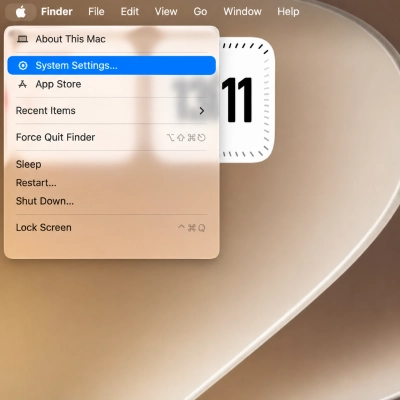
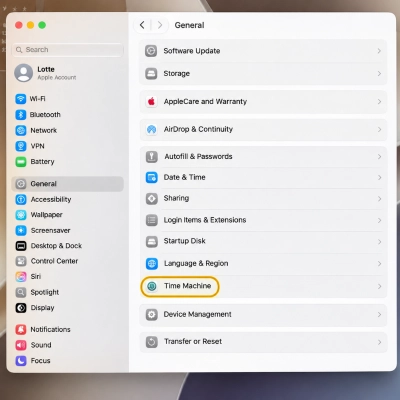
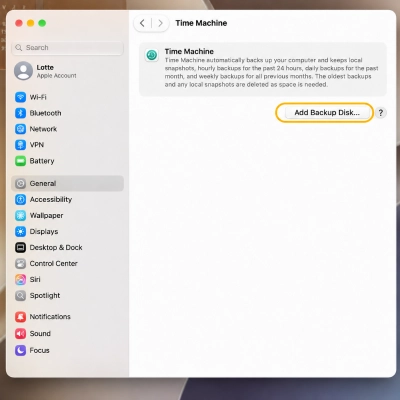
Time Machine will now automatically create backups whenever your external drive is available. The first backup may take a little longer. After that, only new and modified data will be saved.
Tip: Ideally, choose an external drive with at least twice the storage capacity of your Mac. For example, if your MacBook has 512 GB of storage, a 1 TB external drive is a good choice.
Important: During setup, your Mac may ask you to erase the external drive. Only do this if there are no important files left on it, as erasing the drive will permanently delete all existing data. If there are files you want to keep, copy them to another safe location first. We recommend using an empty external drive dedicated to your Time Machine backups.
Can you also back up your Mac with iCloud?
With iCloud, you can store and sync photos, documents and other files across your Apple devices. This is convenient, but iCloud is not a complete backup of your Mac.
If you delete a file from iCloud Drive, it will usually also disappear from your other devices. That's why we recommend using iCloud and Time Machine together.
How to restore files with Time Machine
Accidentally deleted an important file? With Time Machine, you can easily recover it.
- Connect the external drive containing your backup.
- Open the folder where the file was originally stored.
- Open Time Machine from the menu bar.
- Find the correct backup and select your file.
- Click Restore.
Have you purchased a new MacBook? You can use Migration Assistant to transfer your files, apps and settings from a Time Machine backup to your new Mac.
How often should you back up your Mac?
Do you use your Mac every day? Let Time Machine create backups automatically on a regular basis. Occasionally, check when your last backup was made by going to System Settings > General > Time Machine.
Make sure to create a backup before selling your Mac, sending it in for repair or switching to a new device.
Safely switching to another MacBook
With a recent backup, you reduce the risk of losing important files. It also makes transferring your data to another Mac much easier.
Ready for a different MacBook? Explore our range of refurbished MacBooks at iUsed and easily transfer your files to your next Mac.
Frequently asked questions about backing up your Mac
Can I back up my Mac without an external hard drive?
You can store important files in iCloud Drive, but this is not a complete backup. For Time Machine, you can also use a compatible network storage device.
How much storage space do I need for a backup?
We recommend using an external drive with at least twice the storage capacity of your Mac. If your MacBook has 256 GB of storage, ideally choose a drive with at least 512 GB of storage.
Does Time Machine create backups automatically?
Yes. Once Time Machine is set up, backups are created automatically whenever your external drive is available. Make sure to connect it regularly.
Can I transfer my backup to another MacBook?
Yes. With Apple's Migration Assistant, you can transfer files, apps and settings from your Time Machine backup to another MacBook or iMac.
Is iCloud the same as Time Machine?
No. iCloud syncs files between your devices, while Time Machine creates separate backups that allow you to restore your files. That's why it's a good idea to use both together.